|
· DBGT100.com
|
|
|

Will return in 2-4 days!
------------

------------
|
|
· AniB. Newsletter
|
|
|
|
|
|
|
· DBGT NETWORK
|
|
|
•
Tutorials: Macromedia Fireworks: Easy Layout
So you want to make a website?, Have no clue what to do? You've come to the right place. Today I will try to show you how to make a simple layout in
Macromedia Fireworks, Enjoy. First off, here's some tools you'll need:
1- Marcomedia Fireworks(Get it from macromedia.com)
2- A good imagination :)
Now lets get started, Open up Macromedia fireworks and go to "new", it
should look something like this:
Now it should show something like this:
Now here you can put the sizes of your layout, for example I used 750 width and
800 length, any size is good. Now click "ok" and you should have something like
this(right above this text).
Now go to your right in the tools menu (if you dont see it go to windows on the top
and go to Tools) select the square tool and get ready to make your tables. Basicaly just make the squares were you want your menu to be.
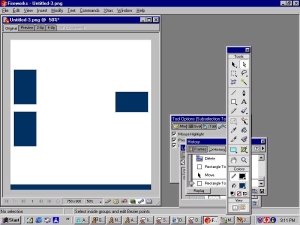
These tables will basically become your menus later on in the tutorial. You can fill
the table in with whatever color you want using the tool option and you can also stroke it to whatever color of your choosing (it should be in the tool option, under colors).
Now go to insert and insert your banner. (If u dont know how to make a banner, that's my next tutorial :)) It should look something like below. Now it's time to add some text to your website.
Now you should have your basic tables and your basic banner. Now click the text tool in the tools menu (it should be a big black "a") and start adding text. Note- Your tables can be diffrent from mine, it does not matter. After adding text, it should look something like below.
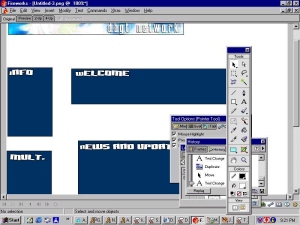
After your're done with your easy level layout, click all your menus. Right-click one at a time on them and click insert slice (this will slice your whole layout) not insert a slice in all your menus, or go to insert on the top.
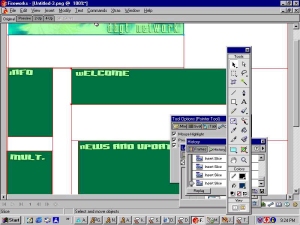
Your layout should be like this with the slices, now go to "file>>export" and you're done. Well that's it for the easy layout, intermediate is next.
By-GogetaXl, DBGTN.com
|
[ Recommend this page to a friend
- Printer Friendly Version ]
|
|
|
|
[
Home -
Staff Login -
FAQs -
Link Us -
Contact -
Privacy Policy -
Terms of Use -
Copyright
]
Dragon Ball, Dragon Ball Z, and Dragon Ball GT © 2002 BIRD STUDIO/ SHUEISHA, TOEI ANIMATION. Licensed by FUNimation® Productions, Ltd. All Rights Reserved.
Dragon Ball, Dragon Ball Z, and Dragon Ball GT and all logos, character names and distinctive likenesses thereof are trademarks of TOEI ANIMATION.
All information on this web site is solely for DBGTN.com unless otherwise stated. Not to be mistaken for the official site, DBGTN.com is strictly a fan site where by no infringement is intended.
Page loaded in 0.172908 seconds.
|