DBGTN.com: [Return to the Previous Page]
|
• Tutorials: Adobe Photoshop: Making Layers Transparent 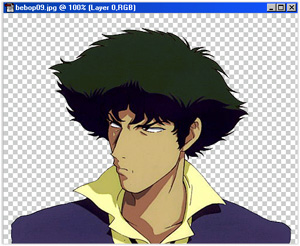 Depending on the image or what you want, you might want to clear the background of the image you have selected. Now open the other image you want to be in the main image. 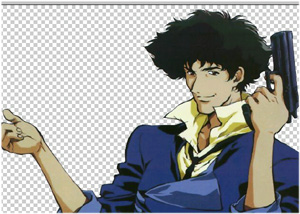 Now, you will need to clear the background of the image that you are going to paste on the other image. You might have to adjust the size of the image depending on how big your background image is. Once you have cleared the background (and adjusted size if needed) hit Ctrl+A and then Ctrl+C.  Now go back to the other image, hit Ctrl+V. Now here comes the transparency part. Make sure the top layer is selected. See the Opacity? Click the arrow next to the "100%". Lower it according to how transparent you want it. 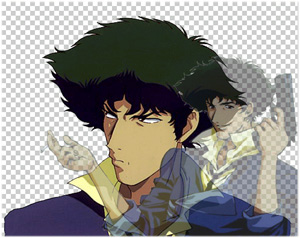 It should look similar to that. Once you have done this you can add other simple effects to make it look cooler. 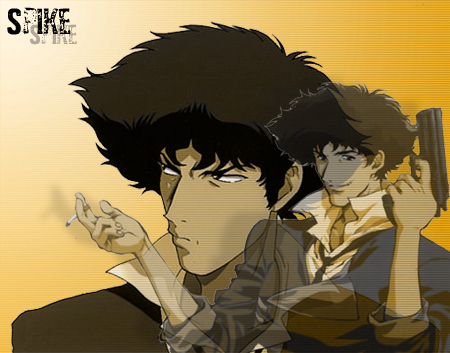
|
[Return to the Previous Page]
[Return to the DBGTN homepage]