|
· AniB. Newsletter
|
|
|

|

|
|

|
· DBGT NETWORK
|
|
|
•
Tutorials: Adobe Photoshop: 3D Ball
 |
Create New File,
500 x 500 at 150 Res.
First, make a
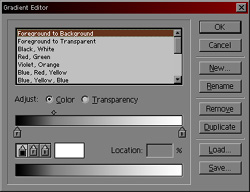
new layer, select the circular marquee tool and make a circle, fill it
with a white to black gradient, but change the gradient so that there
is more white than black within the ball. You can blur this to make a smoother
gradient.
|
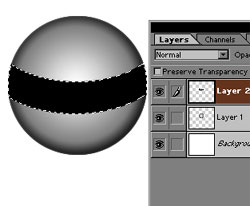 |
Now, make a new layer, and select the circle from the
previous layer by holding ctrl and clicking on that layer in the layer
menu. select the circular marquee tool again and, while holding alt,
subtract the top part of the selection. now, while holding alt AND
shift, crop a middle arched section and fill it with black.. blur this
until you get the desired effect and set the transparency to around 50%.
|
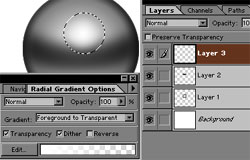 |
Make a new layer and select the circular marquee
again.. make a smaller circle and fill with a white to transparent
gradient. transform it to be a round oval lying horizontal in the top
section of the circle to get the shininess. make a duplicate layer, set
it to color dodge, set transparency to 25%, and move it up or around
until it looks right.
|
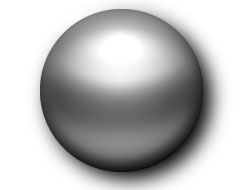 |
Now you can mess around with it until it looks right.
Good Luck.
|
|
|
|
|
|
[
Home -
Staff Login -
FAQs -
Link Us -
Contact -
Privacy Policy -
Terms of Use -
Copyright -
Viewing -
Statistics
]
Dragon Ball, Dragon Ball Z, and Dragon Ball GT © 2002 BIRD STUDIO/ SHUEISHA, TOEI ANIMATION. Licensed by FUNimation® Productions, Ltd. All Rights Reserved.
Dragon Ball, Dragon Ball Z, and Dragon Ball GT and all logos, character names and distinctive likenesses thereof are trademarks of TOEI ANIMATION.
All information on this web site is solely for DBGTN.com unless otherwise stated. Not to be mistaken for the official site, DBGTN.com is strictly a fan site where by no infringement is intended.
Page loaded in 0.143638 seconds.
|