|
|
|
|
|
· AniB. Newsletter
|
|
|

|

|
|
|
· DBGT NETWORK
|
|
|
•
Tutorials: Adobe Photoshop: Lightning effect
 |
First
you need to use the gradient tool and shade black to grey. |
|
 |
Go
to Filter>Render>Difference Clouds and keep doing Difference Clouds
until you get the BLACK to look how you want to. In this case it only took
one time. Note: It may take more than one attempt to get the Difference
Clouds to look good. |
|
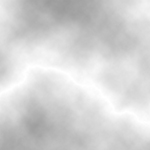 |
Now
go Image>Adjust>Invert. You should get a light colored picture. Now
we can fix that. |
|
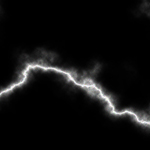 |
Now
go to Image >Adjust>Levels. Move the middle arrow all the way to the
right. Then move the arrow on the left to get the desired amount of
clouds. |
|
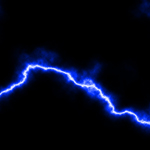 |
Now
go Image>Adjust>Hue/Saturation. Click colorize and get the desired
color. You don't have to add color if you don't want to. |
|
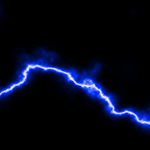 |
Now
erase all the clouds around the edge of the picture that you don't want to
keep. |
|
Now
you can go Image>Rotate Canvas to get the lightning to face the desired
directon |
|
|
|
|
|
|
|
[
Home -
Staff Login -
FAQs -
Link Us -
Contact -
Privacy Policy -
Terms of Use -
Copyright -
Viewing -
Statistics
]
Dragon Ball, Dragon Ball Z, and Dragon Ball GT © 2002 BIRD STUDIO/ SHUEISHA, TOEI ANIMATION. Licensed by FUNimation® Productions, Ltd. All Rights Reserved.
Dragon Ball, Dragon Ball Z, and Dragon Ball GT and all logos, character names and distinctive likenesses thereof are trademarks of TOEI ANIMATION.
All information on this web site is solely for DBGTN.com unless otherwise stated. Not to be mistaken for the official site, DBGTN.com is strictly a fan site where by no infringement is intended.
Page loaded in 0.330621 seconds.
|