 |
Step
1.
Make a space bakground by adding some noise and using craquelure.
|
 |
Step 2.
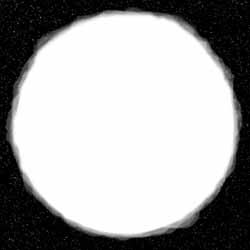
On a new layer, draw a circle. Fill it with white. Run some of those odd
shaped brushes around the edges with the opacity turned down to something
like 35.
|
 |
Step
3.
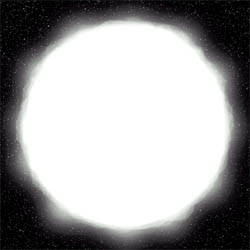
Hide the old layer and make a new one. Reselect the original circle and
use [shift] + the polygonal lasso tool to make a pointed shape. Make
sure it's not much bigger than the circle was.
|
 |
Step 4.
Gaussian blur the shape by like 60. Just make sure you can't tell it used
to be a pointed shape. Unhide the fire layer, center the two, and merge
them together.
|
 |
Step 5.
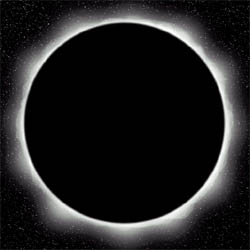
Make yet another layer. Draw a circle hiding most of the white. Fill it
with black. Guassian blur it by 4 or so.
|
|
Step 6.
Add another layer and fill it all with black. Set that layer's mode to
screen. Render a lens flare. Put the lens flare on the edge of the sun. I
personaly desaturate the lens layer to make it the same as the sun, white.
|