|
· AniB. Newsletter
|
|
|

|
|
|

|
· DBGT NETWORK
|
|
|
•
Tutorials: Image Maping
This tutorial will show you how to make an image map. Image maping is a way of linking only certain parts of an image.
You will need the following things in order to start:
1) The finished image
2) The Map-edit Program (download here)
Download Instructions-
Right-click the (download here) text in listing #2 above, then select 'Save Target As..' or 'Save Link As..' Once you decide where to save it click on save or ok. Mapedit is self-extracting. When the download is complete, find the map32dst or mapdst file where you instructed the browser to save it, and double-click to start the setup program. Mapedit will take over from there.
Here is the image i will be using as an example tut_map1.jpg:
Once you have the image inserted in a page and the program ready you need to open the Mapedit program, the program should display a screen asking you where the page is located at. Just look for it and open it:
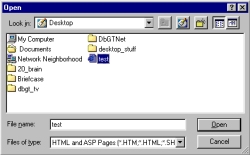
When you open it another screen will pop-up asking you which image do you want to map that's on the page you opened. Click on the one you are going to map in my example it's tut_map1.jpg:
It will then display a screen with the image you're going to map:
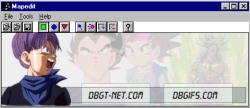
On this screen click on a shape that best surrounds the area you want to map, i chose a rectangle:

Now left click one corner of the area you want to map and drag until you reach the other end of the maping area. Once you reach the other end click again for the properties box.
When the url properties box opens just type in where you want it to link to and click ok. It can be a page or another site. For the example i will link it to my own site:
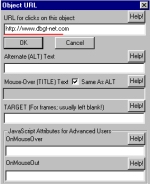
You can either go ahead and do the same process to link other parts of your image or just save like i will do:
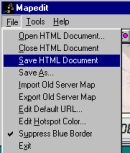
Now you're done! I hope this tutorial helped you start maping images.
|
|
|
|
|
[
Home -
Staff Login -
FAQs -
Link Us -
Contact -
Privacy Policy -
Terms of Use -
Copyright -
Viewing -
Statistics
]
Dragon Ball, Dragon Ball Z, and Dragon Ball GT © 2002 BIRD STUDIO/ SHUEISHA, TOEI ANIMATION. Licensed by FUNimation® Productions, Ltd. All Rights Reserved.
Dragon Ball, Dragon Ball Z, and Dragon Ball GT and all logos, character names and distinctive likenesses thereof are trademarks of TOEI ANIMATION.
All information on this web site is solely for DBGTN.com unless otherwise stated. Not to be mistaken for the official site, DBGTN.com is strictly a fan site where by no infringement is intended.
Page loaded in 0.169876 seconds.
|