|
· AniB. Newsletter
|
|
|

|

|
|

|
· DBGT NETWORK
|
|
|
•
Tutorials: Adobe Photoshop: Eclipse effect
|
Step
1.
Make a space bakground by adding some noise and using craquelure.
|
 |
Step 2.
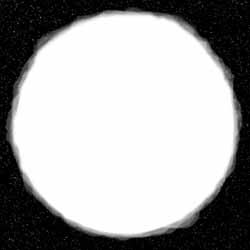
On a new layer, draw a circle. Fill it with white. Run some of those odd
shaped brushes around the edges with the opacity turned down to something
like 35.
|
 |
Step
3.
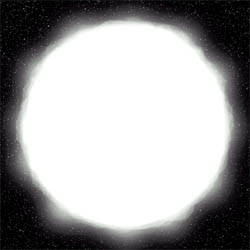
Hide the old layer and make a new one. Reselect the original circle and
use [shift] + the polygonal lasso tool to make a pointed shape. Make
sure it's not much bigger than the circle was.
|
 |
Step 4.
Gaussian blur the shape by like 60. Just make sure you can't tell it used
to be a pointed shape. Unhide the fire layer, center the two, and merge
them together.
|
 |
Step 5.
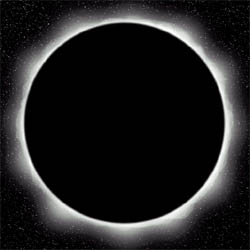
Make yet another layer. Draw a circle hiding most of the white. Fill it
with black. Guassian blur it by 4 or so.
|
|
Step 6.
Add another layer and fill it all with black. Set that layer's mode to
screen. Render a lens flare. Put the lens flare on the edge of the sun. I
personaly desaturate the lens layer to make it the same as the sun, white.
|
|
|
|
|
|
[
Home -
Staff Login -
FAQs -
Link Us -
Contact -
Privacy Policy -
Terms of Use -
Copyright -
Viewing -
Statistics
]
Dragon Ball, Dragon Ball Z, and Dragon Ball GT © 2002 BIRD STUDIO/ SHUEISHA, TOEI ANIMATION. Licensed by FUNimation® Productions, Ltd. All Rights Reserved.
Dragon Ball, Dragon Ball Z, and Dragon Ball GT and all logos, character names and distinctive likenesses thereof are trademarks of TOEI ANIMATION.
All information on this web site is solely for DBGTN.com unless otherwise stated. Not to be mistaken for the official site, DBGTN.com is strictly a fan site where by no infringement is intended.
Page loaded in 0.141471 seconds.
|