|
|


|
· DBGT NETWORK
|
|
|
•
Tutorials: Adobe Photoshop: Pixel Box Text
This is my second tutorial on adobe for all you people so I ask kindly not to duplicate this tutorial by any means. You are free to link to this page though :)
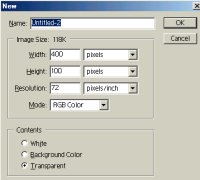 |
Start off by making a new file(Ctrl+N), any size you feel is enough for your text. I made mine 400 pixels in width and 100 pixels in height.
|
|
Fill in the background with the color black(Ctrl+Backspace), the next step is to add your text, you do this by using the Text Tool(left read arrow on image) and selecting a font, size, color(right red arrow on image) then type something on there. For this tutorial i'm typing "DBGTNET" with a white text color.
|
|
Now rasterize your image by going to "Layer" category then "Rasterize > Type". Merge the layers by pressing "Ctrl+E". We now need to duplicate the layer, you can do this by going to the "Layer" category then "Duplicate Layer" click ok on the window that pops up.
|
 |
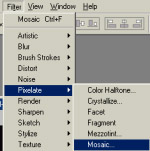
Next step is to start adding the block effect, insert the effect to the new duplicate layer by going to "Filter" category then "Pixelate > Mosaic.." enter 10 in the window that pops up and click ok.
|
 |
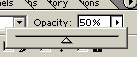
Now decrease the opacity of the layer to 50%.
|
 |
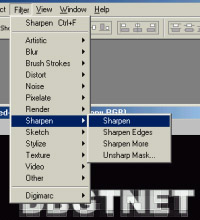
Now to apply more filters, go to the "Filter" category and then select "Sharpen > Sharpen". Repeat this 2 more times and you're done.
|
 |
If you want to add color to it you can do so by going to "Image" category and then select "Adjust > Hue/Saturation". Make sure the "colorize" check box or else the colors won't be applied. You should now have a finished pixel box text effect, use it wisely :D
|
Written by fRaNk, have any questions click here for contact info.
|
|
|
|
|
[
Home -
Staff Login -
FAQs -
Link Us -
Contact -
Privacy Policy -
Terms of Use -
Copyright -
Viewing -
Statistics
]
Dragon Ball, Dragon Ball Z, and Dragon Ball GT © 2002 BIRD STUDIO/ SHUEISHA, TOEI ANIMATION. Licensed by FUNimation® Productions, Ltd. All Rights Reserved.
Dragon Ball, Dragon Ball Z, and Dragon Ball GT and all logos, character names and distinctive likenesses thereof are trademarks of TOEI ANIMATION.
All information on this web site is solely for DBGTN.com unless otherwise stated. Not to be mistaken for the official site, DBGTN.com is strictly a fan site where by no infringement is intended.
Parsed In: 0.306 seconds using 5 Queries |
Server Uptime: 3 weeks, 6 days, 11 hours, 19 minutes | Server Load: 0.50, 0.62, 0.85
|

 Check out